
Need something custom?
Create a prompt for your exact task, context, and requirements.
The thinking behind the templates
Why this structure works.
- 01
Details have a priority
The prompts distinguish what must appear from how it should look. That gives you a concrete mismatch to identify when attractive styling changes the subject.
- 02
Relationships are explicit
Left/right assignments, empty copy space and separately counted accessories turn loose descriptions into visible requirements. These instructions still need checking in the image.
- 03
Words and facts come from you
The poster and visual-guide cards separate approved content from decoration. They request faithful rendering, not invented dates, process steps or supporting claims.
- 04
Each card has a finish line
A portrait, a product concept and a visual joke need different checks. Use the relevant criteria rather than treating 'looks impressive' as enough.
How to use
- 01
Decide whether you are creating a new image or changing an existing one. Choose a gallery card for a new image; use an image-input editor for a real photo.
- 02
Fill only the chosen card's fields with shareable visual details and approved wording. The sample people, products, places and scenarios are fictional; replace them rather than treating them as research.
- 03
Copy the complete filled prompt into your chosen Nano Banana image-generation interface. If it offers model and canvas controls, select them there and match the requested ratio.
- 04
Review the image with the card's checks at both thumbnail size and the size you intend to use. Name one visible mismatch before revising the brief, and keep a copy of the prompt and settings you used.
Run a quick quality check.
Ready-to-use checklist
- The intended subject count is correct, and each person's clothing, features and accessories remain assigned to that person.
- Important silhouettes and faces fit inside the crop; hands, object contact points and cast shadows are coherent.
- The actual canvas ratio suits the intended placement; any final crop preserves the required details.
- Reserved copy space is genuinely clear rather than filled with props, texture or stray lettering.
- Poster wording and guide captions match the supplied text, including numbers, punctuation and order, and remain readable at the intended size.
- Architectural openings, levels and visible connections match the brief; attractive extra doors or stairs count as errors.
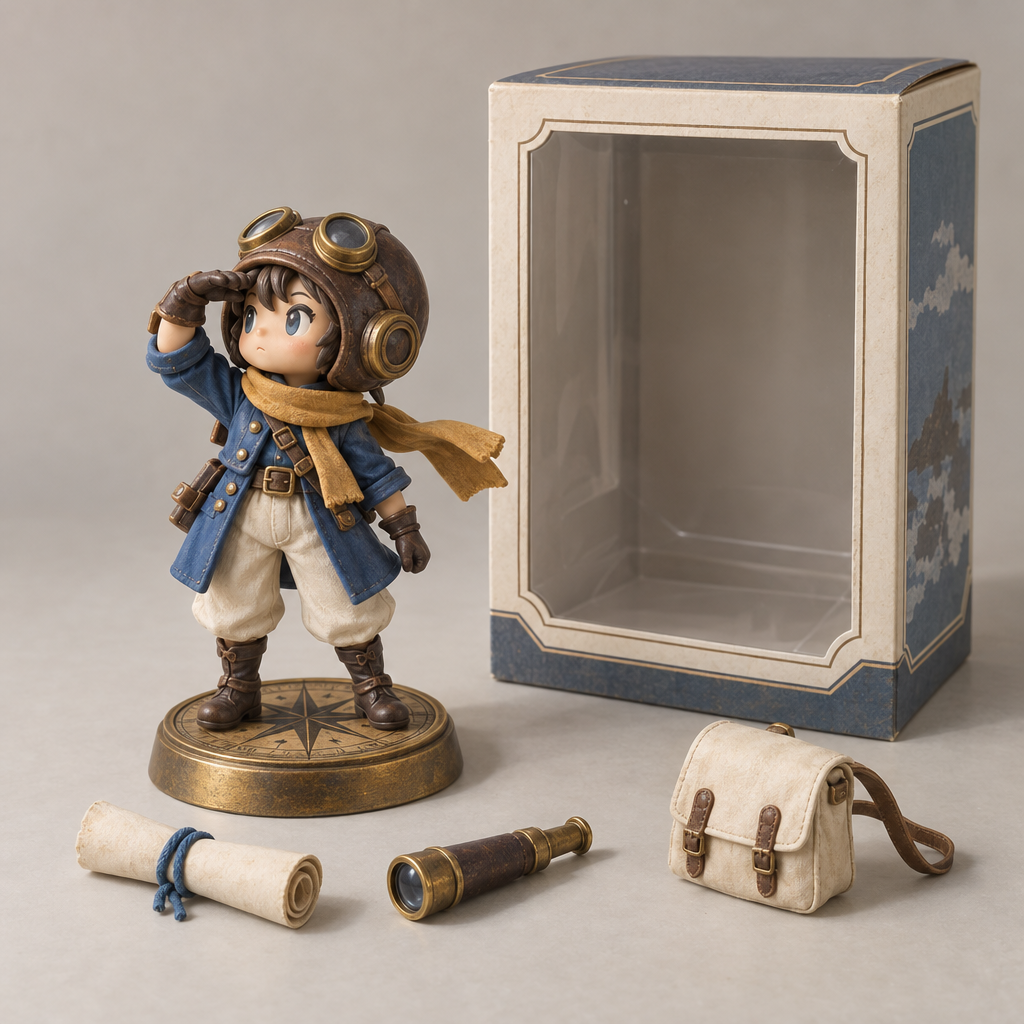
- A miniature has the requested figure and accessory counts; a visual joke has its intended absurdity without unrelated distortions.
Small choices that improve the result.
Make it stronger
- Describe a relationship, not just an inventory: specify which hand holds the cup, which wall has the windows or which side stays empty.
- For portraits, name a few distinguishing visible features before adding mood words. Clothing and lighting can change without making the imagined person generic.
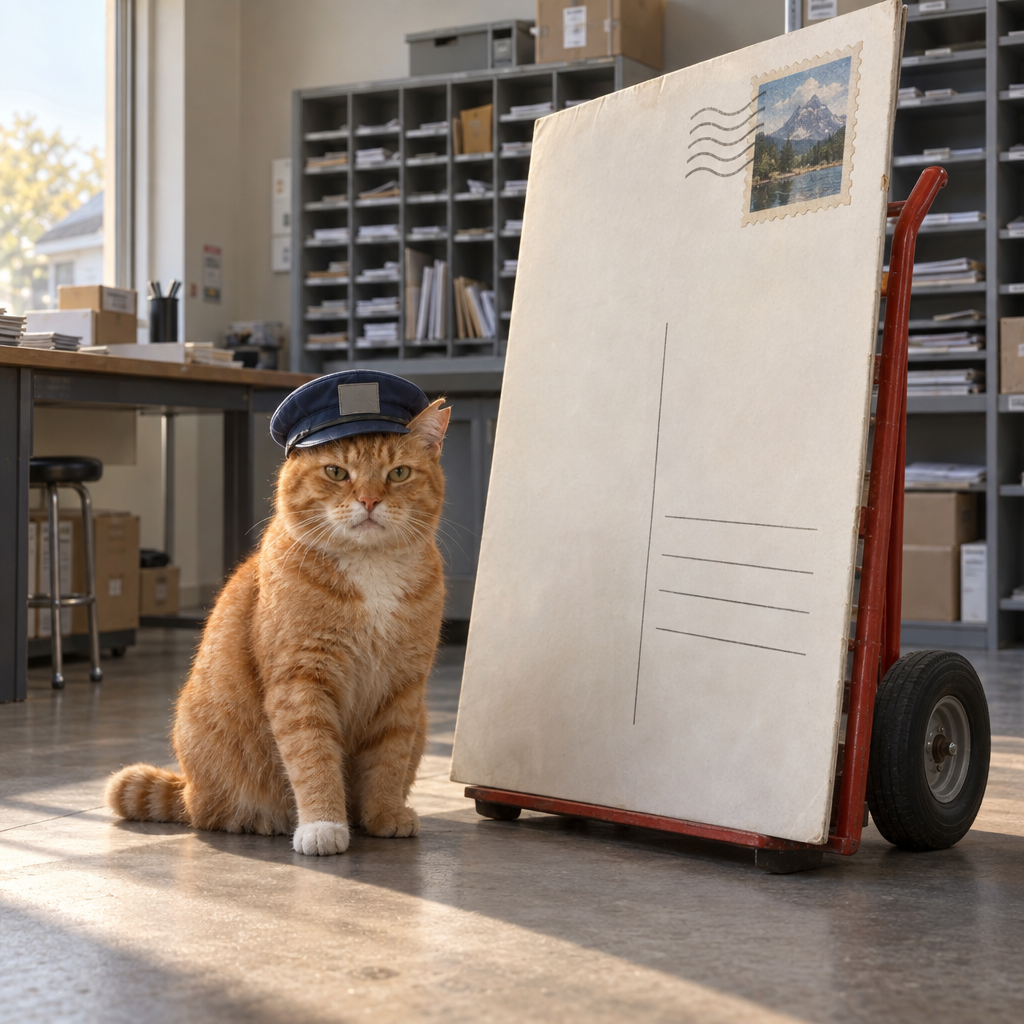
- For a visual joke, decide what should be impossible and let everything around it look ordinary. Judge whether the idea reads without a caption.
Common mistakes
Hiding a required feature outside the crop
widen the view or remove the conflicting framing instruction before adding more descriptive detail.
Putting extra poster wording in the art-direction field
keep all approved text in the copy field so the illustration brief cannot create a second headline.
Trying to repair several problems at once
choose the mismatch that matters most, change its instruction and compare again before changing the rest.
Further guidance
Nano Banana, Pro and 2: choose the model separately
The names refer to different Gemini image models: the original Nano Banana is Gemini 2.5 Flash Image; Nano Banana Pro is Gemini 3 Pro Image; Nano Banana 2 is Gemini 3.1 Flash Image; and Nano Banana 2 Lite is Gemini 3.1 Flash Lite Image. (ai.google.dev)
Google positions Nano Banana 2 as the generalist, Pro for complex production tasks and 2 Lite for speed-focused work. Those are provider descriptions, not comparisons established by this gallery. Choose an available model in your tool; do not treat its name as a visual style. (ai.google.dev)
- For a first brief, start with the scene card rather than adding technical vocabulary you do not need.
- For lettering or ordered information, choose the poster or visual-guide card because its instructions address that job—not because a 'Pro' label makes correctness automatic.
Write a brief you can inspect
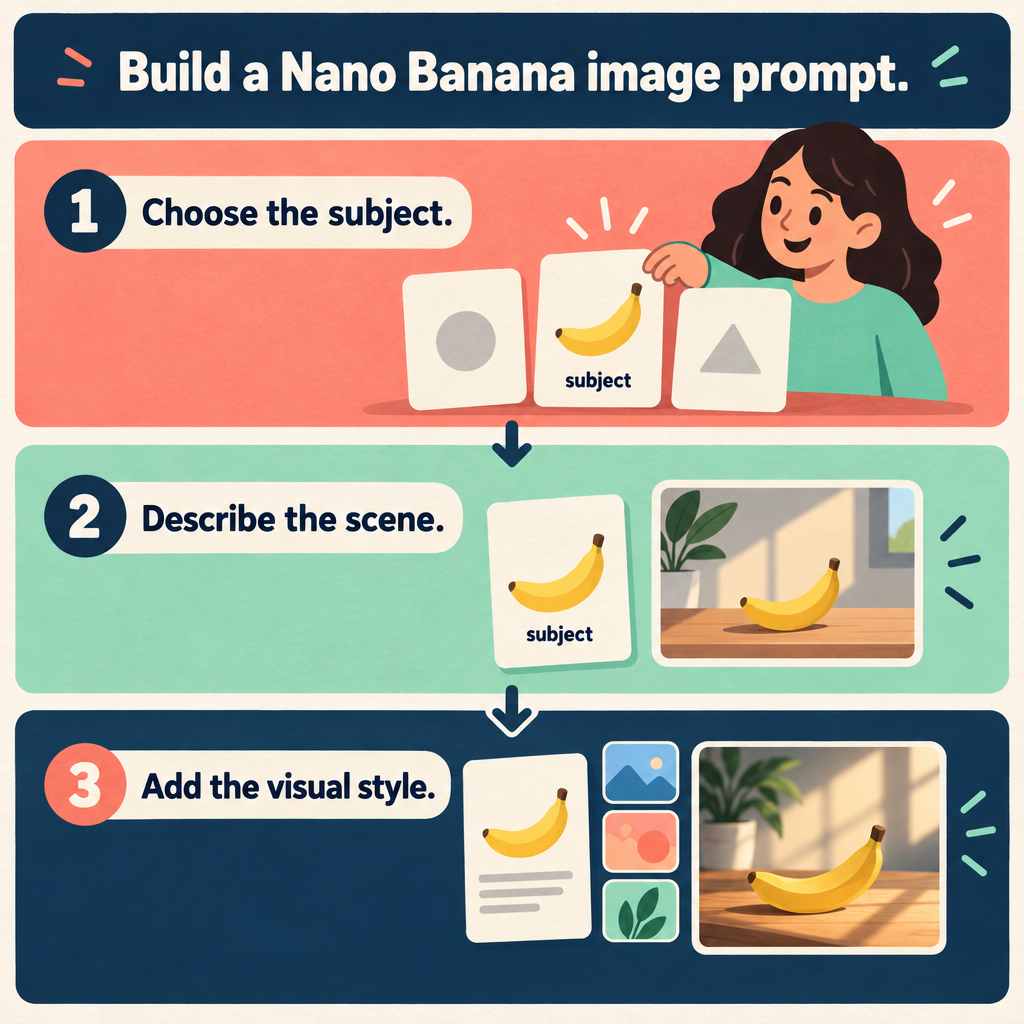
Google's prompting guide recommends specifying the subject, action, location, composition and style, then adding details such as lighting and intended text. Use those as decisions, not a checklist of impressive-sounding camera terms. (blog.google)
A useful brief names the picture and the reason for each important constraint. 'One mug on the right, with the left third clear for a headline' gives you something to inspect; 'premium, stunning, ultra-detailed' does not define the layout.
- Subject: identify who or what appears, including the count.
- Relationship: say what the subject is doing and how important objects connect.
- Composition: choose the view, crop and any area to leave clear.
- Treatment: choose compatible lighting, materials and colors.
- Priority: name the few details that matter more than decoration.
Editing a real photo needs the real photo
For Nano Banana photo-editing prompts, begin with the image you want to change. Google documents editing a generated image, uploading a photo for edits and supplying multiple images for a composition. A text-only portrait card is not a substitute for those inputs. (support.google.com)
Use an image you have permission to work with and avoid sharing unnecessary personal information. Before editing, identify the source image, one requested change and the details that must remain unchanged. If combining images, assign each a role such as person, product, background or visual treatment.
Treat preservation wording as a request, not a lock. Google's Pro guide notes that character consistency can vary and complex edits can introduce artifacts. Compare the result with the original before accepting it. (blog.google)
- Background replacement: protect the subject's outline, pose and visible details; inspect edges and whether the new lighting fits.
- Outfit or lighting changes: keep a clear list of facial and body features to compare rather than relying on 'same person'.
- Several simultaneous changes: begin with the most important edit, review it, then decide whether another edit is worth making.
- Actual floor plans or products: supply the real reference in an image-input tool; use this gallery's architecture and product cards only for written-brief concepts.
Enhancing image quality is not the same as recovering detail
Decide whether you want a cleaner-looking image or a faithful restoration before asking for enhancement. A study of Nano Banana 2 restoration reported both semantic inconsistencies and exaggerated generated detail in some cases. A sharper-looking result is therefore not, by itself, evidence that lost detail was recovered. This finding is specific to the study's setup, not a failure rate for every image. (arxiv.org)
For an original-photo task, work in an image-input editor, keep the original and name the defect: noise, fading, scratches or blur. Prefer the least change that meets your purpose. Inspect identity, texture and lettering side by side; do not treat newly generated details as documentary evidence.
- If fidelity matters more than appearance, reject attractive additions that were not supported by the source.
- If the problem is export size rather than image content, check the downloaded file's dimensions and available output settings before asking for a new interpretation.
What it's for
Match the prompt to the job.
What this helps you do
- A new image shaped around your subject, composition and important visual details.
- A focused way to inspect faces, object counts, layout, lettering or spatial relationships.
- A clear decision about when the task needs an actual source photo rather than a text-only brief.
Who it's for
Find the right fit for your task.
Start with Create a photo-style scene for a flexible first image. Choose a specialist when you need two distinct people, deliberate copy space, fixed architectural features or exact lettering.
These cards generate new images from text. They do not edit an upload or reproduce your face from a name. For an existing photo, use the editing guidance below to choose an image-input workflow.
Casual creators
Start from a short scene description or a single visual joke instead of assembling a long list of style keywords.
Portrait experimenters
Explore fictional people, wardrobe and lighting while keeping appearance separate from styling decisions.
Designers and small teams
Develop product, poster and visual-guide concepts with explicit layout and copy checks.
Spatial-design students and concept makers
Explore a written architectural idea without confusing a plausible visualization with a measured plan.
FAQ
Do I need different Nano Banana prompts for men and women?
Not for these cards. Use the portrait prompt and describe the fictional adult's actual visible traits, clothing and expression. Gender alone is not an appearance brief. Use the couple card when two distinct people and their interaction are the main task.
Does writing '4K' or 'Nano Banana Pro' select the model or resolution?
No. Select the available model and output settings in your interface or API. Google's documentation configures these separately from the scene description. Check the downloaded file rather than assuming a word in the prompt determined its resolution. (ai.google.dev)
- Nano Banana image generation — Google AI for Developers
Does a free prompt mean free image generation?
No. Copying the wording and generating an image are separate. Your chosen service controls access, plans and usage limits; Google's help page describes account-dependent availability and quotas, including paid access to Redo with Pro. Check your account before planning a large batch. (support.google.com)
- Generate & edit images with Gemini Apps — Google Gemini Apps Help