
Need something custom?
Create a prompt for your exact task, context, and requirements.
The thinking behind the templates
Why this structure works.
- 01
Fixed details come first
The templates distinguish subject facts from optional decoration, then ask the model to disclose added choices rather than quietly treating them as your brief.
- 02
The prompt stays copy-ready
Review notes and unresolved settings sit outside the image description, so you can copy the usable core without including commentary.
- 03
Changes have a boundary
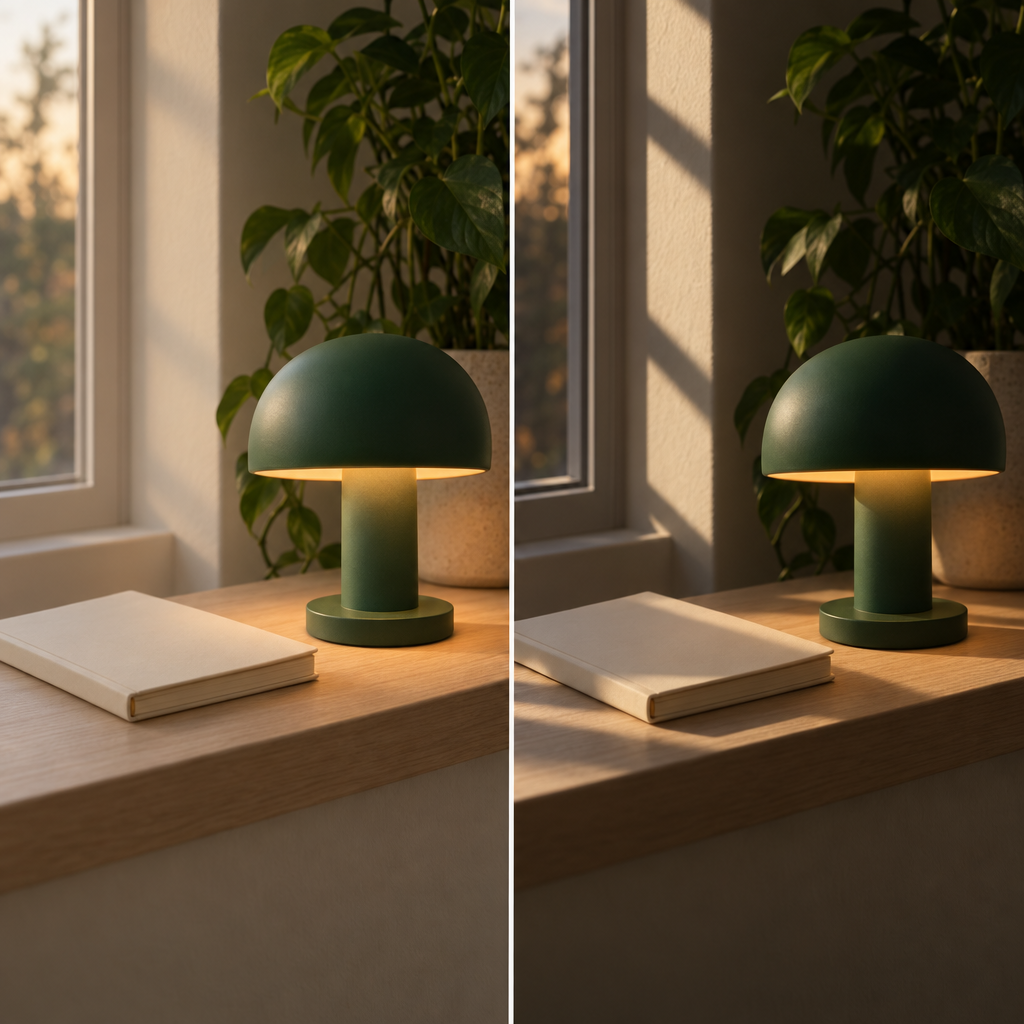
Comparison and repair cards identify what may change and what must remain. That makes the wording easier to inspect; it does not guarantee matching images.
- 04
Layout gets its own instructions
The social card asks for subject placement and copy space in each frame, not just a new ratio attached to the same composition.
- 05
Formatting is conditional
The conversion card uses a small set of explicit routes and separates unsupported settings instead of inventing a universal configuration.
How to use
- 01
Choose the job first: a new prompt, social layouts, two visual treatments, a repair, a small series or a format conversion. Start with the first card unless you already have a prompt or a multi-image brief.
- 02
Fill only the selected card's fields. Supply literal scene details or the actual source prompt, rank the must-keeps and replace the fictional practice inputs with your own shareable material.
- 03
Copy the complete filled template into a text-capable AI assistant. Review the returned image prompt and its separate notes; correct an unwanted assumption before rendering.
- 04
Paste only the copy-ready image prompt into your image-generation tool. Apply any confirmed settings separately and check the tool-format guidance below rather than carrying over unexplained flags.
- 05
Compare the resulting image with your brief. If one important detail misses, record the specific discrepancy and use the repair card; if exact source-image preservation is essential, switch to an image-input editing workflow.
Run a quick quality check.
Ready-to-use checklist
- The written prompt names the intended subjects, counts, action and important spatial relationships.
- Colors, materials and distinguishing features belong to the correct named objects.
- The framing protects essential details and identifies any area that must remain quiet for later copy.
- Exact in-image words match the supplied text; overlay instructions do not also ask the model to draw lettering.
- Each prompt works independently, without an unseen reference or a phrase such as 'same as above'.
- Added choices, conflicts and unsupported settings are visible outside the copy-ready prompt.
- The later image is reviewed against the actual brief; a well-written prompt is not treated as proof that every requirement was rendered.
Small choices that improve the result.
Make it stronger
- Describe the appearance you want: matte paper edges, broad brush shapes, soft side light or a muted palette are more inspectable instructions than 'make it premium'.
- Specify whether left and right mean the viewer's viewpoint or the subject's own sides when an asymmetric feature matters.
- Keep a note of the prompt and the actual tool settings used for each render. When comparing revisions, change one intended choice before adding more.
Common mistakes
Adding quality slogans before naming the scene
replace vague praise with the subject, action and the feature you most need to see.
Using a product or person's name as a complete visual reference
supply approved visible details, or use an actual reference-image workflow when identity matters.
Requesting an empty headline area and then filling it with background props
describe what belongs in that area, such as a plain wall or quiet sky.
Changing style, lighting and composition while trying to repair one defect
isolate the reported mismatch and preserve the useful parts of the original.
Further guidance
Use the right format for your image tool
Keep the visual idea separate from the tool's controls. Midjourney recommends concise descriptions and documents parameters at the end of the prompt; that is not a reason to append a preset version or quality bundle to every idea. (docs.midjourney.com)
- Midjourney: use --ar for an explicit aspect ratio and --no for exclusions. Its documentation warns that words inside a multiword --no phrase are interpreted independently, so check that an exclusion does not also remove something you need. (docs.midjourney.com)
- Gemini: describe the intended scene, purpose and visible relationships. Google's guide recommends concrete detail and positive descriptions of the desired scene; it also documents separate aspect-ratio and image-size controls in the API. These templates do not configure those controls. (ai.google.dev)
- FLUX.2: Black Forest Labs says it does not support negative prompts. Describe the desired replacement state, such as a plain unlettered surface, rather than inventing a negative-prompt field. This guidance is specific to the documented FLUX.2 behavior, not every third-party workflow. (help.bfl.ai)
- Other interfaces: only use a separate negative block when the selected setup explicitly supports one. If you cannot confirm the syntax, keep the prompt in plain language and leave technical settings for review.
Need an image-to-prompt generator instead?
Use an image-input tool when the starting point is a picture. Midjourney's Describe, for example, analyzes an uploaded image and suggests prompts; its documentation explicitly says those prompts will not precisely copy the image. The text-only cards here do not perform that analysis. (docs.midjourney.com)
Treat a suggested prompt as a description to inspect, not evidence that the source image's original prompt, camera settings or hidden details were recovered.
- Start with an image you are allowed to share. Remove unnecessary private details before uploading it to another service.
- After analysis, compare the suggested subject, count, viewpoint, palette and visible text with the actual image. Delete details that the tool guessed.
- Decide what you want to reuse: the composition, visual treatment or a particular subject. Make that choice explicit instead of asking for an undefined 'same look'.
- If exact identity or an existing product must remain unchanged, use the real reference in an appropriate editing workflow; a written description is not a substitute for that input.
When shared wording is not enough
Use the shared-style card to make the written requirements consistent, then inspect the actual images together. Compare framing, background density, edge treatment and color relationships—not just whether each image looks attractive alone.
For reference-led styling, Midjourney documents Style References for transferring qualities such as medium, texture, color and lighting, rather than copying the people or objects in the reference. That is a separate image-input workflow, not a capability supplied by repeating a paragraph. (docs.midjourney.com)
Image prompt ideas to make your own
Use one of these original seed ideas in the Visual idea field, then choose your own style and constraints. They are starting briefs, not recorded model outputs.
- Valentine's Day still life: two folded paper cranes leaning toward each other on a pale stone ledge, their shadows meeting in the center. Leave the upper third quiet for a message added later; use no printed words.
- Product concept: a fictional cobalt watering can beside one small terracotta seedling pot, with a single arc of water visibly connecting spout and soil. Keep the handle, spout and pot separate and readable.
- Surreal editorial scene: an oversized pearl balanced in a tiny wooden rowboat on a perfectly still indoor pool. Let the reflection reveal the unexpected scale; keep the surrounding room simple.
- Character moment: an original adult bicycle courier pausing under a glass awning while rain beads on a bright yellow helmet. Show one hand holding the handlebar and the other protecting a small paper parcel.
What it's for
Match the prompt to the job.
What this helps you do
- One concise image prompt that preserves your subject, composition and important constraints.
- Standalone layout versions or scene prompts with shared details made explicit.
- A targeted rewrite with the changes and remaining uncertainties visible.
- A clear separation between image description, tool settings and requirements to check in the rendered result.
Who it's for
Find the right fit for your task.
Start with “Turn an idea into an image prompt” for one scene. Add what must stay, choose the framing and look, and review any details the model proposes.
These cards produce written prompts to paste into an image generator. Choose a specialist when you need layout adaptations, a focused revision or a coordinated set—not simply a longer description.
Creators with a rough picture in mind
Turn a short description into a prompt with deliberate subject placement, styling and constraints.
Social and content teams
Prepare layout-specific briefs with approved copy and clear space, without inventing campaign facts.
Designers refining an existing direction
Compare one choice, make a small repair or plan a related set while keeping the intended changes visible.
FAQ
Is this a free AI image prompt generator?
The templates are free to copy and customize; SecondBrain's prompt library identifies its resources as free to copy with no signup. Writing prompt text in your chosen assistant and rendering images are separate steps, so check those services' account terms and limits rather than assuming free or unlimited generation. (secondbrain.is)
What is the best prompt for an AI image generator?
Start with the details you would reject an image for getting wrong: subject, action, arrangement and any exact wording. Add style only where it serves that goal. There is no universal template established by this page: Midjourney advises concision, while Google's image guide emphasizes specific scene details and intent. Use those as starting guidance, then inspect the result. (docs.midjourney.com)
- Prompt Basics — Midjourney
- Nano Banana image generation — Google AI for Developers
Why did my assistant make an image instead of writing a prompt?
Use the complete gallery template in a text-capable assistant, not just the scene description. The first step asks for written prompt text. Then copy the returned image prompt into your image-generation tool. If an interface sends every request straight to rendering, use a separate text assistant for the drafting step.