

Need something custom?
Create a prompt for your exact task, context, and requirements.
The thinking behind the templates
Why this structure works.
- 01
The change has a boundary
Each after prompt repeats the starting scene and names the areas allowed to change. That makes the request inspectable; it does not lock pixels or identity.
- 02
People keep separate descriptions
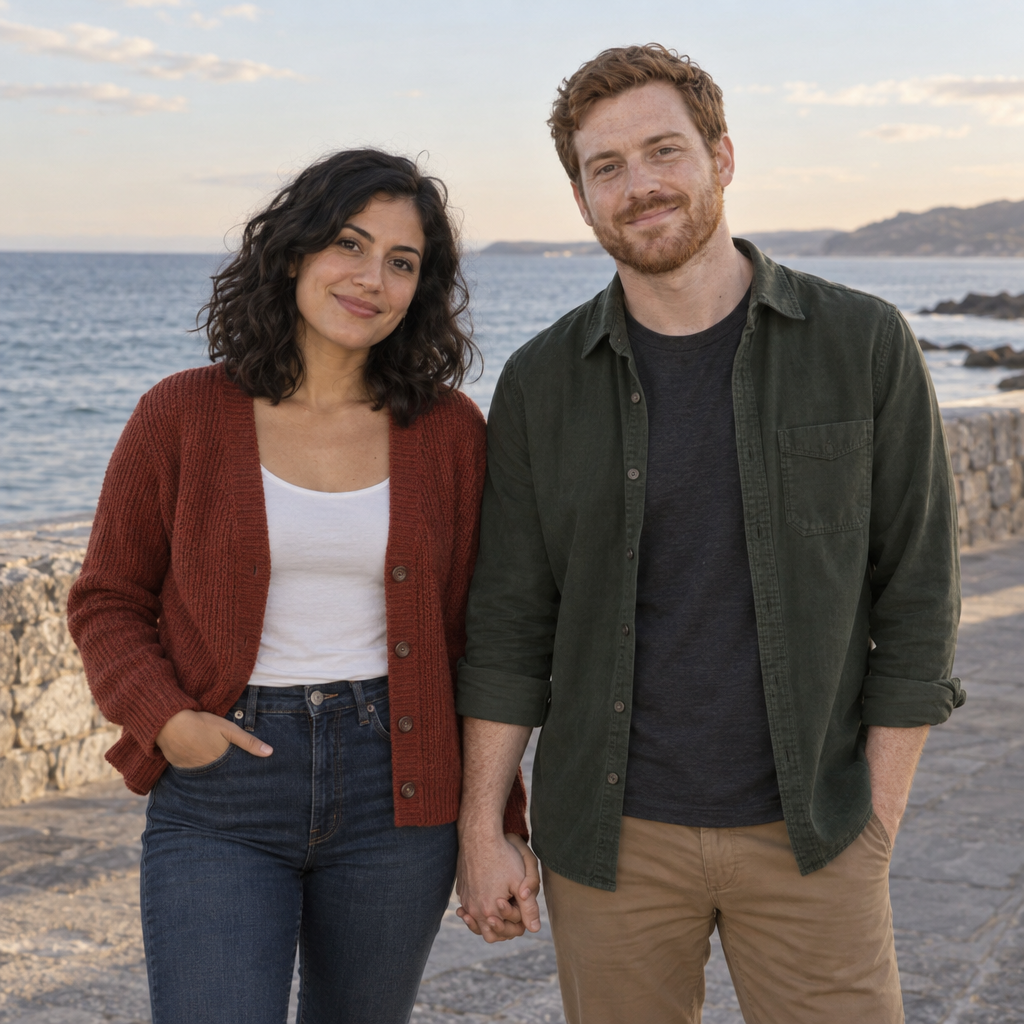
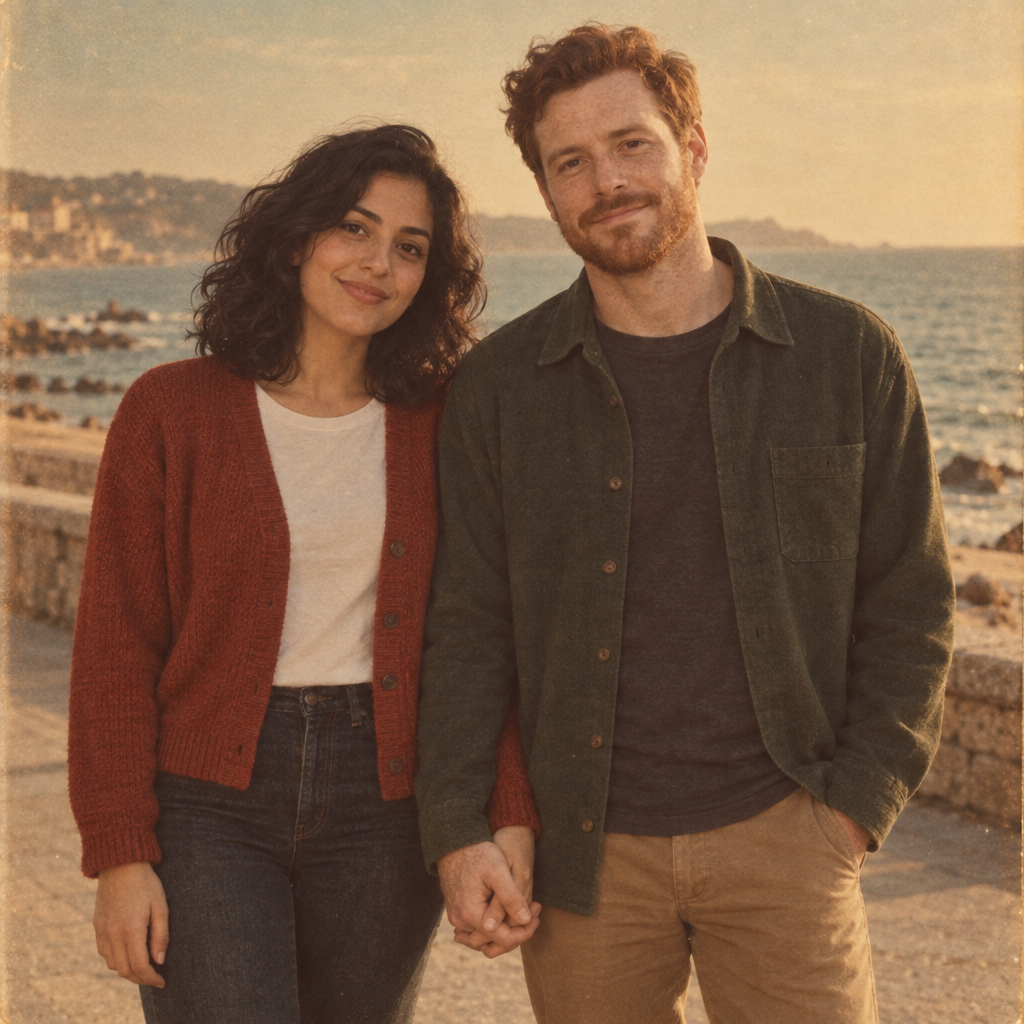
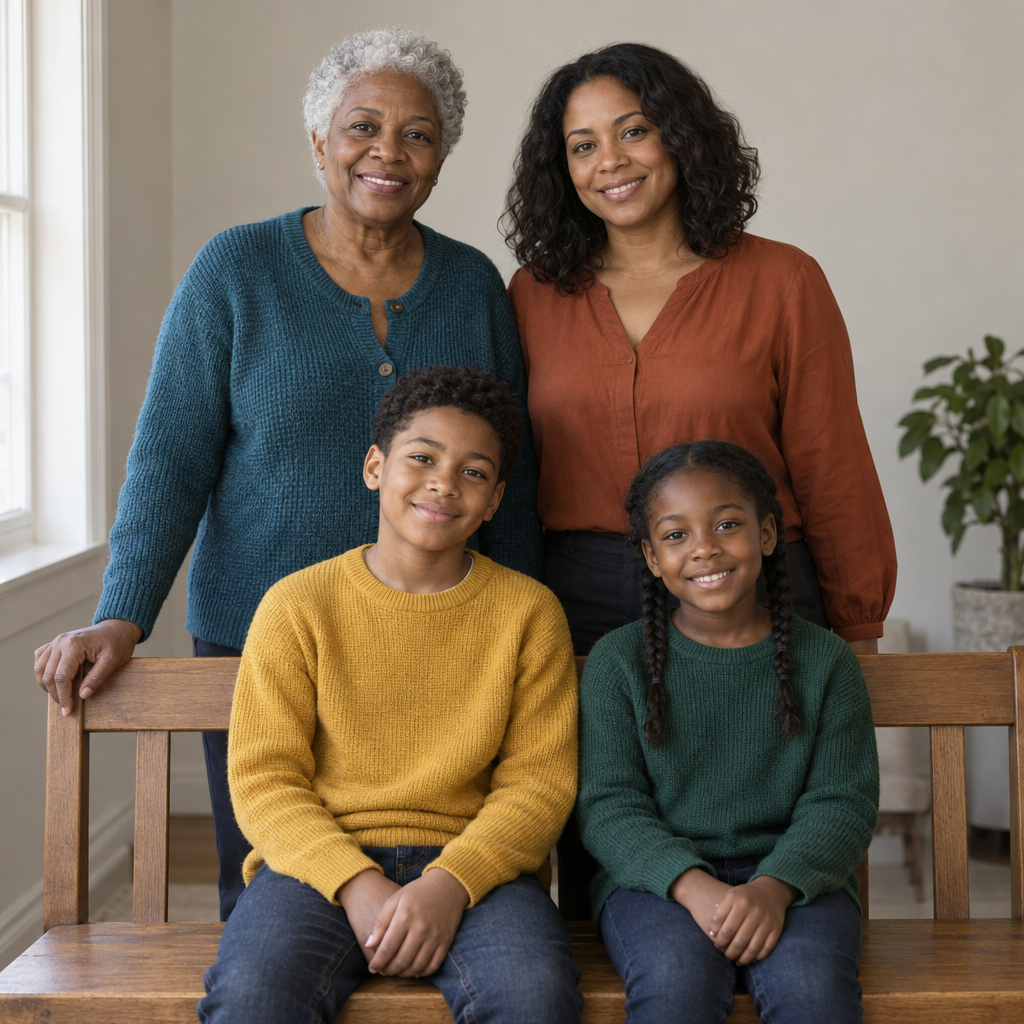
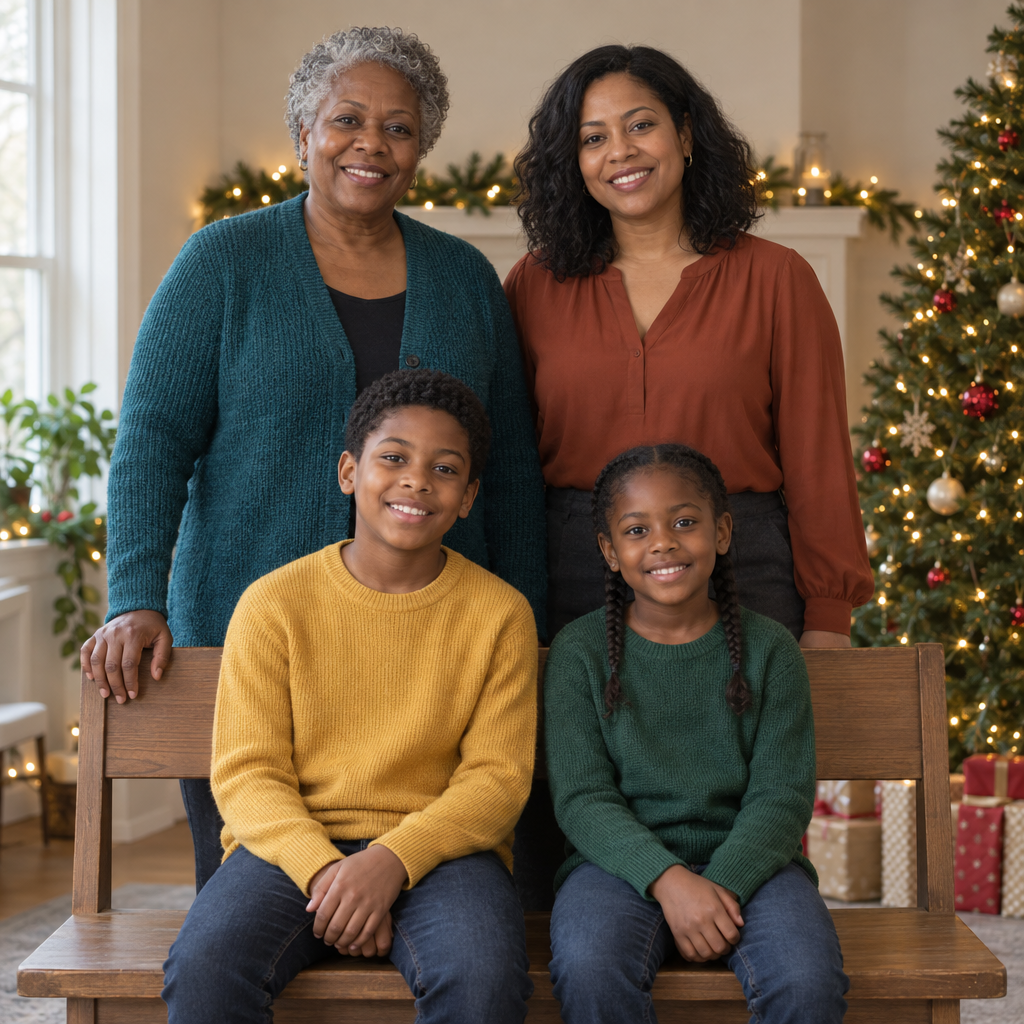
The couple and family cards attach features, clothes and positions to individual people, giving you specific checks for swapped traits or missing members.
- 03
Style does not authorize a new person
Film color, holiday scenery and clothing changes do not automatically permit a different age, skin tone, body shape or expression.
- 04
The checks fit the photograph
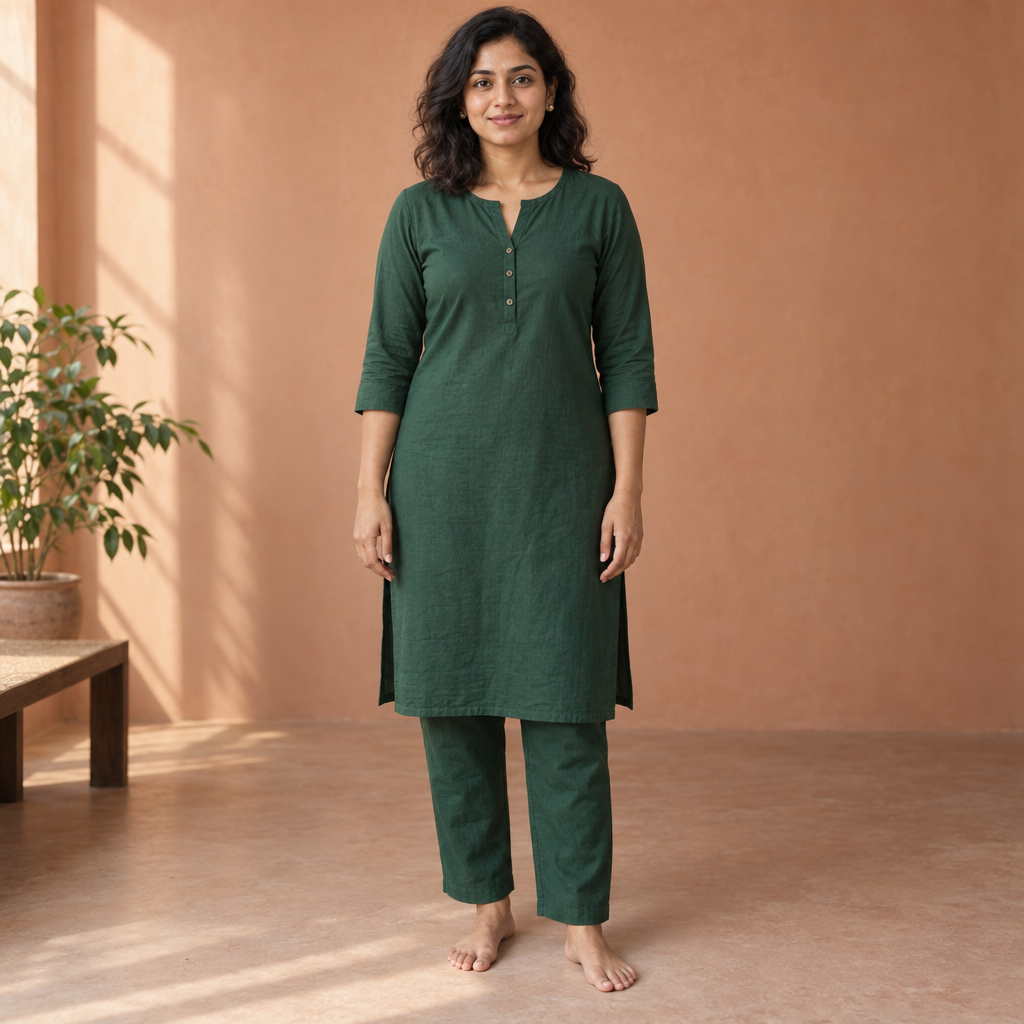
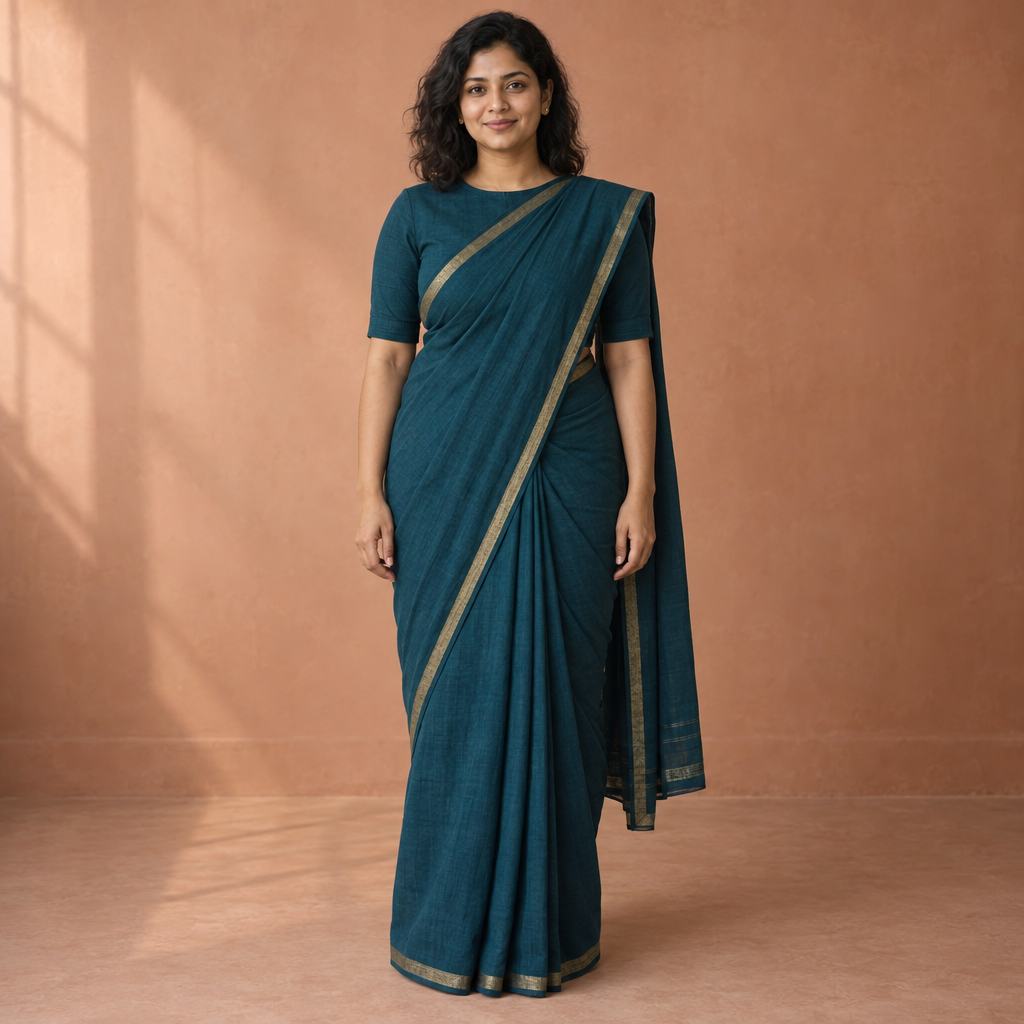
Garment drape, group visibility and a background costume need different review criteria. Judge the requested details, not just whether the image looks polished.
How to use
- 01
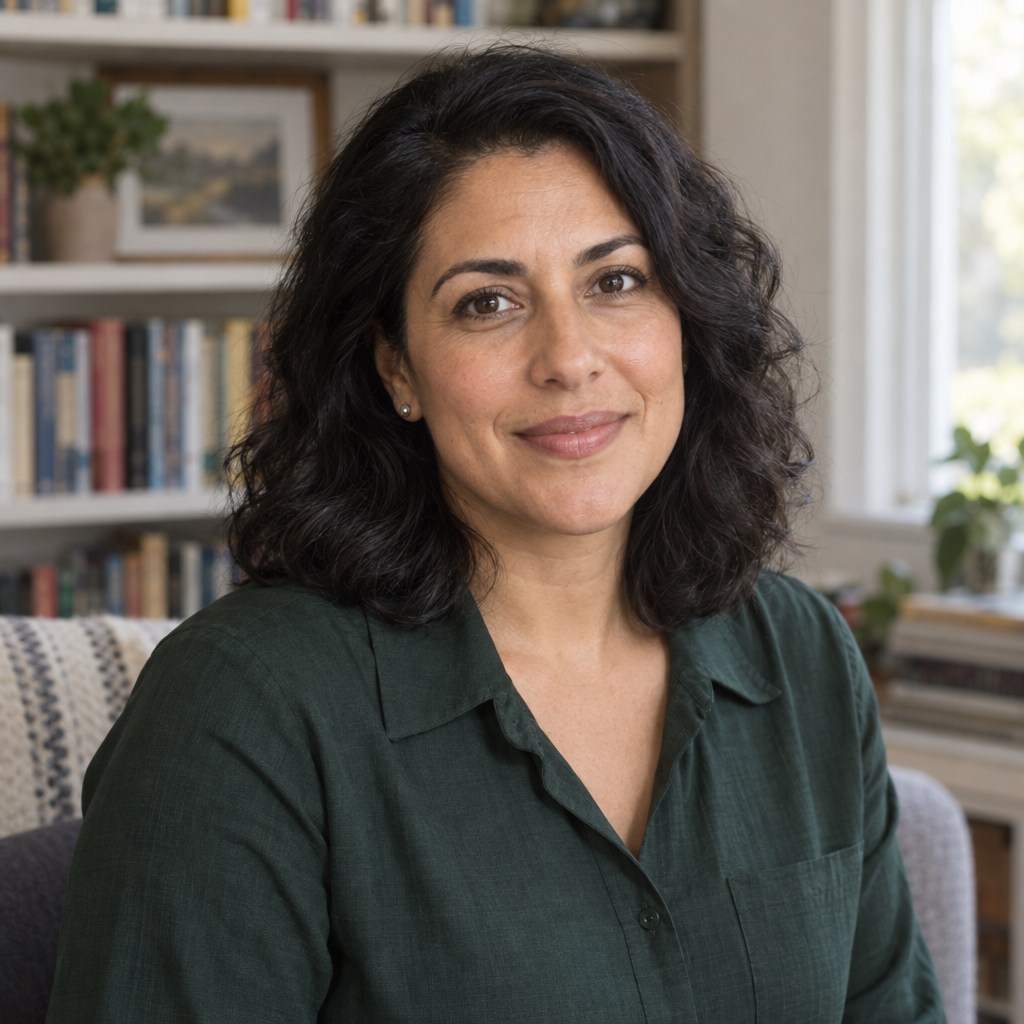
Choose the task: a solo restyle, retro couple, family setting, saree change or Halloween scene. The solo pair covers professional and casual portrait ideas without assuming a particular gender or body type.
- 02
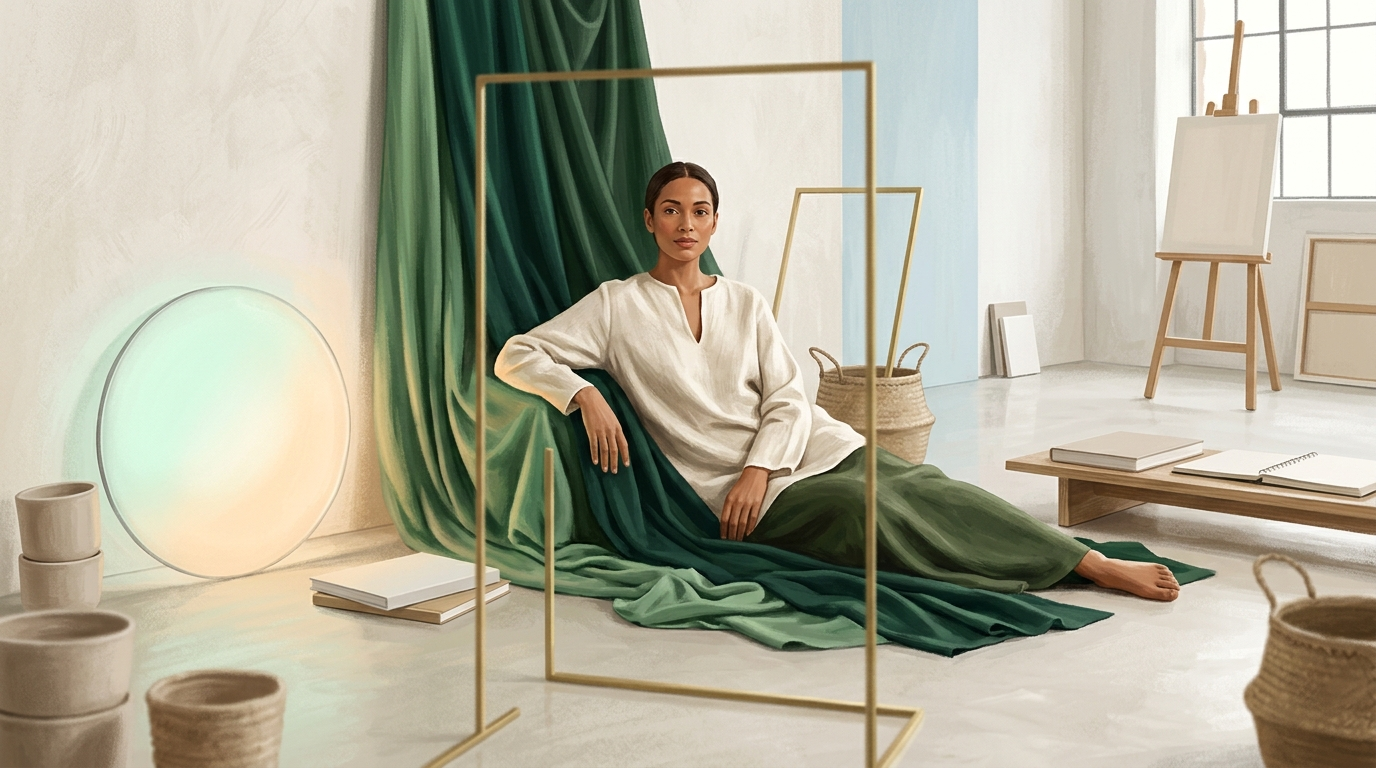
For an illustration, supply the complete fictional scene and the desired changes. Reuse the same scene and canvas ratio across a pair. You can copy only the after card when you want the target look rather than both states.
- 03
Replace every double-braced placeholder and paste the complete selected prompt into an image-generating Gemini session. Each card asks for one new image, not a description or another prompt.
- 04
For an actual photo edit, do not paste the illustration prompt unchanged. Upload a photo you are permitted to use and follow the source/keep/change instructions below; the gallery's fictional scene is not your source image.
- 05
Review an illustration against its own written brief. Review a real edit against the actual original, including every face in a group, before accepting or sharing it.
Run a quick quality check.
Ready-to-use checklist
- The image contains the intended people once each, in the specified positions, without swapped clothes or merged features.
- The allowed transformation is visible, while details outside that change remain consistent with the written brief.
- Faces, hair, glasses and skin texture are readable; hands, overlapping bodies and garment edges have no conspicuous distortions.
- For a family scene, every face remains visible and sufficiently sharp rather than only the nearest person being in focus.
- The downloaded canvas and final crop fit the intended use without clipping heads, important clothing or required gestures.
- For a real-person edit, the subject recognizes the result as an acceptable likeness and approves the intended sharing; a generated comparison image is not the reference.
Small choices that improve the result.
Make it stronger
- Choose a source photo already close to the desired pose and framing. Keep the proposed change small when likeness matters.
- Use viewer-left and viewer-right for group positions. For a garment, name the wearer's shoulder and, when useful, explain where it appears to the viewer.
- For professional portraits, describe the actual background, clothing and light you want instead of asking for an unspecified 'glow-up'.
- Keep an untouched original and save the prompt alongside the result you choose, so later revisions have a clear starting point.
Common mistakes
Contradicting the change request
If you want a new outfit, do not also list that outfit as something that must remain unchanged. Keep facial and body details separate from wardrobe.
Letting a style become a stereotype
Specify the garment, makeup or accessories you actually want rather than asking the model to infer them from gender or cultural identity.
Accepting a prettier but different face
For a real portrait, reject unwanted facial changes even if the lighting and clothes look convincing.
Treating a restyle as recovered history
Keep the source photograph. Invented colors, garments and scenery are creative additions, not evidence of what an old photograph originally showed.
Further guidance
Use the idea on your own photo in Gemini
For a real edit, supply the real photo and check your account's access. Google's help documents editing uploaded or generated images and says image editing is unavailable to users under 18. The gallery instead creates independent illustrations from text. (support.google.com)
Keep the original, then adapt the chosen look into a separate editing request. Start with 'Edit the uploaded photo', carry over only the desired treatment, and add the details that must stay unchanged. Remove the fictional-scene and new-image instructions rather than pasting the illustration prompt unchanged.
Google's prompting guide recommends specific visual details and direct editing instructions. Use the three-part checklist below to make your intended change concrete; it is not a guarantee of source fidelity. (blog.google)
- Source: Upload a clear photo you are permitted to use, with all relevant faces and garment areas visible. Begin with a single source close to the desired pose and crop; combining separate real photos is not demonstrated by these pairs.
- Keep: Name the face, expression, hair, body proportions, pose and accessories that must remain. For a group, identify each person by position and specify the exact headcount.
- Change: Name only the allowed backdrop, light, garment or decoration changes. For a couple or family, attach each clothing change to the right person; for a saree, specify blouse coverage and shoulder placement.
- Review: Compare every real face with the original. If the edit changes an important feature, reject that version and narrow the requested change rather than treating the gallery illustration as a likeness reference.
When a photo edit changes the wrong thing
Identify the visible defect before adding more style instructions. Google's Nano Banana Pro guide notes that character consistency can vary and complex blending or lighting changes can introduce artifacts. The repair directions below are proposals to review, not verified fixes. (blog.google)
- The face looks different: Return to the original and remove requests to change pose, expression or facial finish. Try a background-only edit. If the likeness still changes, keep the original for uses where identity accuracy is essential.
- Partners merge or a family member disappears: Specify the source position and distinctive features of each person, simplify overlapping gestures, and check the complete group again. A correct headcount alone is not enough.
- The saree changes the body or adds unwanted styling: Restrict the revision to the garment. Describe the blouse, drape direction and border, while explicitly keeping hair, jewelry and body proportions fixed unless you actually want those changed.
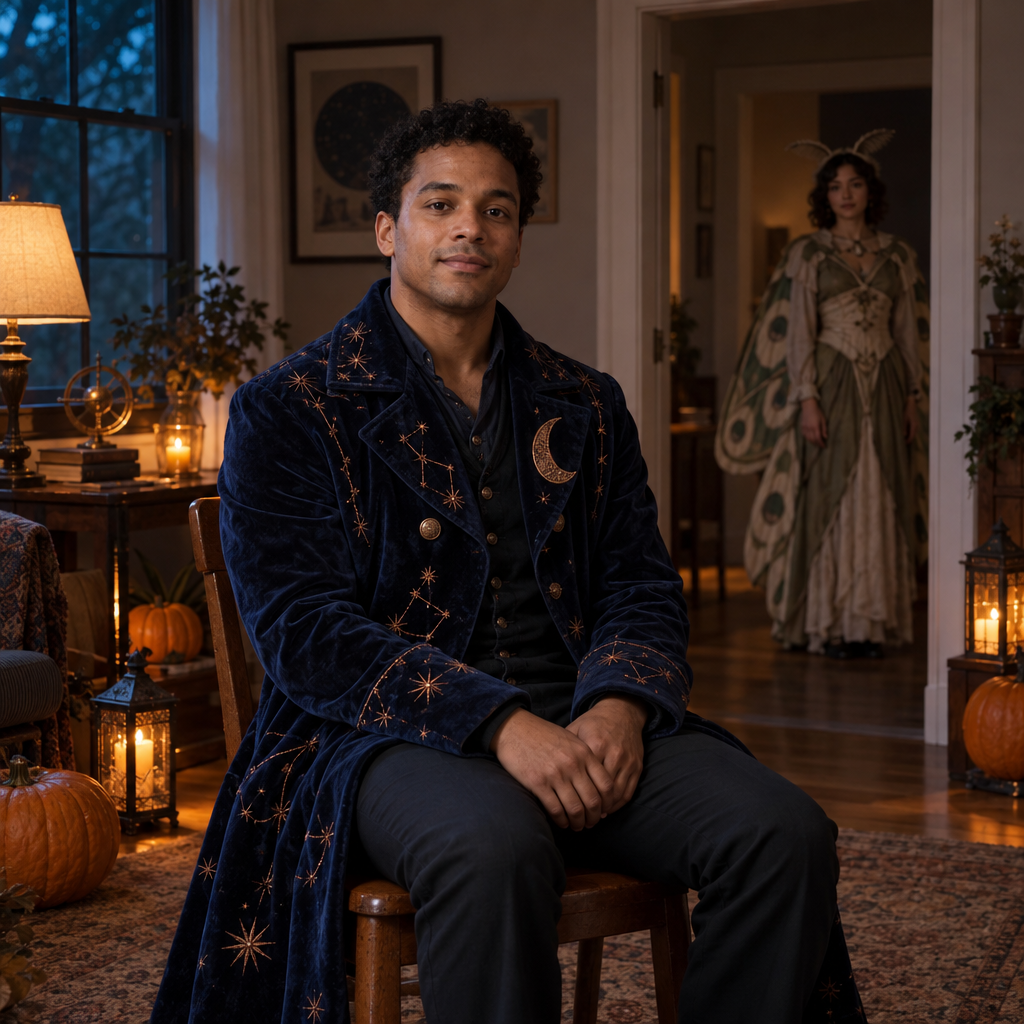
- The spooky set overwhelms the portrait: Keep the foreground face readable and the optional performer farther back. Remove effects that conceal the subject or introduce a second unintended focal point.
Check permission and photo privacy before uploading
Check both the source photo and the people in it: may you use the photograph, and are they comfortable with the proposed alteration and sharing? Google's policies require respecting privacy and intellectual-property rights; a prompt does not establish permission. (policies.google.com)
For personal Gemini accounts, review Keep Activity before uploading. Google's Privacy Hub says uploads can be saved and used to improve services with human review when it is on. Turning it off does not mean no retention, and submitted feedback can still be used for improvement. Work or school arrangements can differ. (support.google.com)
- Use fictional descriptions for these gallery illustrations. Do not enter real names, addresses, private photo links or details unnecessary to the visual task.
- For photos of children, obtain parent or guardian permission and omit school names, addresses and other identifying background details.
- Before sharing a substantially altered photo, make the AI alteration clear when someone could mistake it for a real event, relationship or endorsement.
- For commercial use or an exact recognizable character design, resolve permissions separately. Original styling instructions are not rights clearance.
What it's for
Match the prompt to the job.
What this helps you do
- A new photo-style illustration of the portrait treatment you specify.
- A more precise change request to carry into a separate, authorized source-photo edit.
- Concrete acceptance checks for faces, group composition, clothing, anatomy and crop.
Who it's for
Find the right fit for your task.
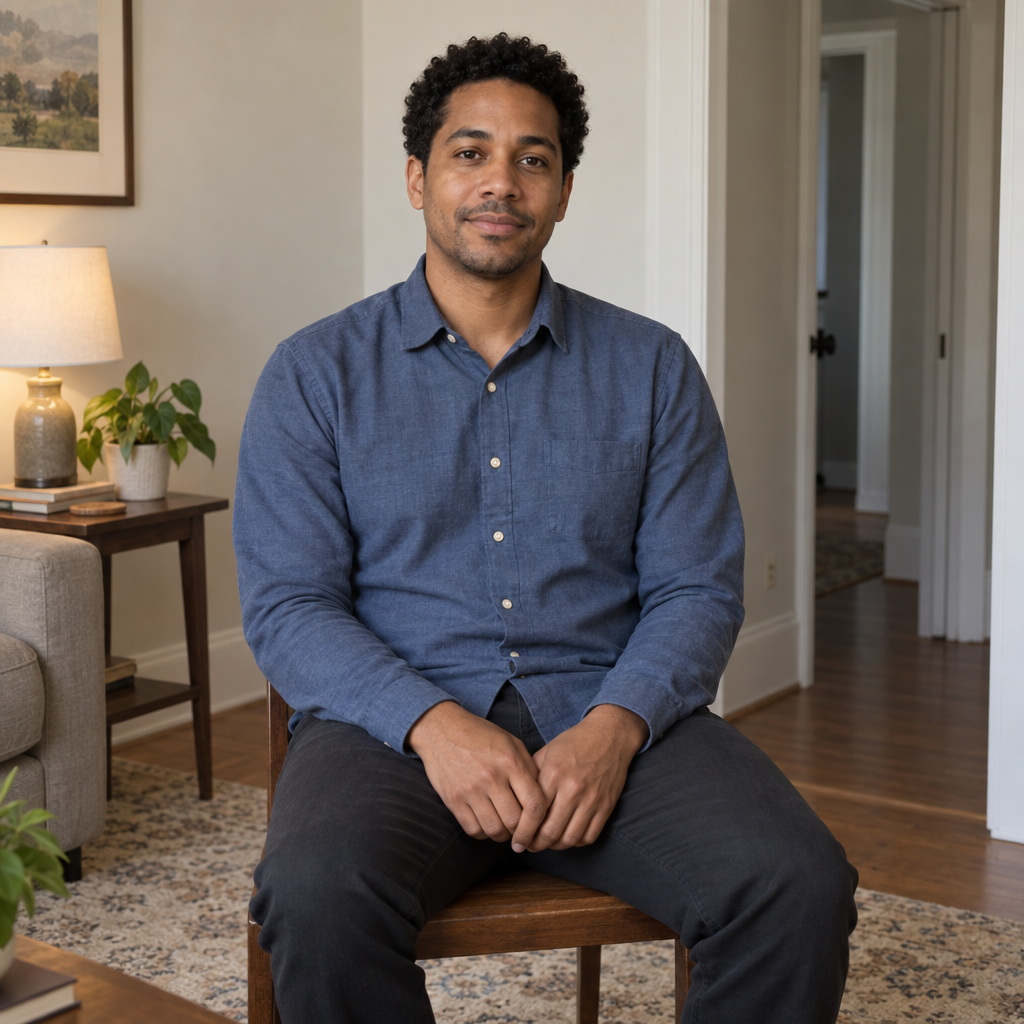
Choose the look you want, then specify what may change and what must stay. For a new fictional photo-style image, use an after-illustration card directly; its adjacent before card describes the starting scene.
The pairs are independent text-to-image illustrations, not edits of an uploaded photograph or demonstrations of preserved identity. For a picture of you or your family, use the real-photo instructions below with your own authorized source.
People planning a portrait update
You want to choose clothing, lighting or a backdrop before applying a limited change to your own permitted photo.
Couples and families
You need each person's appearance and position treated separately while exploring a shared photographic look.
People exploring saree or seasonal styling
You want specific garment and set-design choices without automatically changing the wearer's body or facial traits.
Creators working from original briefs
You want new fictional photo-style images rather than an edit of a real person's photograph.
FAQ
Are Gemini photo prompts and Nano Banana prompts different?
Google uses Nano Banana names for image models available in Gemini. For these tasks, describe the picture or intended edit in natural language; the important distinction is a new image versus an edit with an actual source photo. (support.google.com)
Does adding '4K' or '8K' guarantee the image size?
No. A quality phrase is not evidence of the delivered dimensions. Check the downloaded file and the controls available to your account; Google's help describes download resolution as depending on the plan, not just the prompt wording. (support.google.com)
Can I use the Halloween card for a Scream-style photo?
Use it for an original spooky-film atmosphere, not an exact Ghostface costume. The card lets you specify lighting, setting and an optional masked background performer, while requiring an original costume and a non-graphic scene. It does not establish permission to reproduce a recognizable character.